
by Gordon Harris
On October 14, 2025, Microsoft ended support for Windows 10, which will no longer receive hardware and security updates. An estimated 200 million computers built before 2017 (Intel 8th Generation) don’t have TPM 2.0, and can’t be updated to Windows 11. Windows 10 will still be safe for any purpose that doesn’t involve connecting to the web, but that’s how most people use their computers.
If your old computer is no longer functioning, take it to Brian Burke Computer/Electronic Recycling in Ipswich or Alliance Technology Solutions in Rowley to be recycled. But keep in mind that less than 25% of its batteries, electronics, metal, and plastics are actually recycled. 50 billion kilograms of toxic electronic waste end up in landfills annually. Read more at The burning issue of e-waste by Etelka Lehoczky.
Linux, the Alternative Operating System
With Microsoft pushing everyone to scrap their perfectly good Windows 10 computers for their new AI-powered Windows 11 systems, why not move to something familiar that is free and, dare I say, better? Linux doesn’t need TMP 2.0 to keep your laptop secure and connected. The majority of servers run on the open-source operating system Linux because of its stable and secure design. Linux has been around for almost 35 years. Only a small percentage of home computers used Linux because of the dominance of Microsoft, Apple, Google’s Chrome OS, and the Android operating systems, but that percentage has been steadily climbing since the end of Windows 10 support.
Replacing Windows with Linux is a great choice for keeping your older computer alive and for new computers as well. Over the years, dozens of versions of Linux distributions, known as “distros,” have been developed by thousands of paid and volunteer developers with the backing of the Linux Foundation. It’s recommended that people moving from Windows to Linux start with a distro that feels familiar.
Two standout distros for people moving from Windows to Linux that feel familiar and work right from the start are Linux Mint Cinnamon and Kubuntu. Mint Cinnamon has a compact but comprehensive menu system, and Kbuntu has the excellent KDE Plasma desktop. Both distros provide colorful desktop wallpaper options.
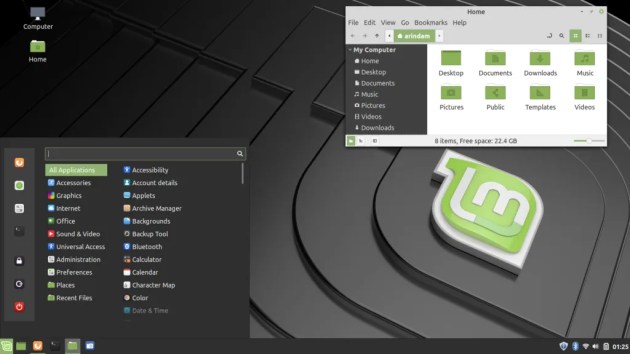
Linux Mint Cinnamon
Linux Mint is based on Ubuntu, an early, popular, and stable Linux distribution for home computers. I briely tried Ubuntu, but its Gnome desktop environment (DE) was not intuitive. Linux Mint has the familiar-looking Cinnamon desktop environment and is often recommended for ease of installation, stability and usability, and has a popular forum. Apps are available through the Flatpak package manager, which installs downloaded software in “sandboxes” that isolate it from the core operating system. (By default, Mint does not use the Snap package manager found in many Ubuntu distros.)
One complaint I have about Linux Mint is the file chooser (attachment dialog). When I want to attach a file to an email, I have to click on the file for a viewable thumbnail to appear. Nemo is the official file manager for Linux Mint Cinnamon, which uses the GTK file chooser dialog. Nemo has a magnifying glass icon for search, but it’s not present in the dialogue box, for example, when attaching files to emails. The trick is to open the folder that has the file you are looking for and start typing. A search box will magically open. It took me days to discover this hidden feature. Also, I was not able to activate a second monitor when runningLinux Mint.
Kubuntu
As its name suggests, Kbuntu is another distro based on Ubuntu and displays the KDE Plasma desktop environment, which is similar to Windows. Linux Mint and Kubuntu both loaded without difficulty and effortlessly connected to my Wi-Fi and wireless printers. Both distros come with LibreOffice and Firefox preinstalled, and other browsers are available through their package managers. The Kubuntu package manager is called Discover and uses Snaps by default. I added Flatpak, giving me a huge inventory of apps to consider downloading. I now use Kubuntu exclusively.
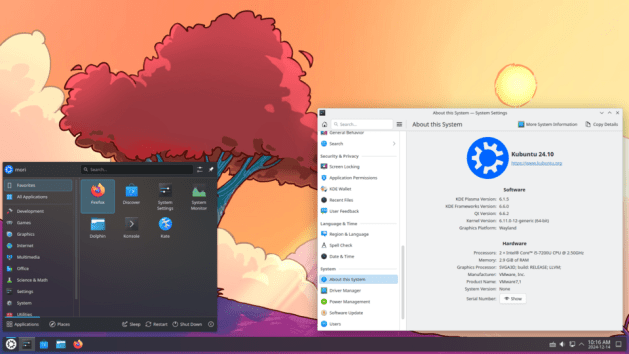
Dolphin, the file manager in Kubuntu, and Qt, its full-featured file chooser, are top-notch. The default Dolphin file manager shows images as thumbnails when you open Dolphin, and also when searching for image files from apps and browsers. A nice feature of the Plasma desktop is the Screen Edges function, with which you can view all applications that are open on your computer.
Ubuntu-based distros like Linux Mint and Kubuntu install most, if not all, of the hardware drivers you will need. Fedora KDE Plasma is another excellent distro with the KDE Plasma desktop environment, but if you don’t want to have to hunt for drivers, stick with Ubuntu-based distros like Kubuntu and Linux Mint Cinnamon.
Software
Did I mention that all Linux software is open source and free? There are hundreds of applications that you can install and try out with ease, and just as easily uninstall.
Libre Office
As you can imagine, Microsoft Office does not have a Linux version, but all Linux distributions come with LibreOffice pre-installed, offering almost identical equivalents of Word, Excel, and PowerPoint. With Libre Office, it doesn’t seem to be possible to copy and paste a photo from the web, which you can do in Microsoft Office. Instead, you can save the image and then select it, or (2) use the excellent Linux screenshot feature and paste it into the document. In my Dell computer, I simply hit the prt scr (print screen) button, then it gives me the option to select and copy a rectangular area from the screenshot, and paste it directly in.
A more basic option is OnlyOffice, which I use instead of LibreOffice for running PowerPoint shows.
Graphics
Image editing: The lack of a Linux version of Photoshop is disappointing, but I use Photopea, a free online Photoshop clone. There are a multitude of free open source image editing apps, including the sophisticated but unintuitive GIMP and easier apps like Krita and Pinta.
Install Upscayl to restore grainy photos, or go to Picsart or Hitpaw to do it online. There are several image colorization apps online, including Palette and Image Colorizer.
Scanning
Scanners: Linux Mint comes with a default scanning program called Document Scanner. I like the open-source NAPS2 scanning program because of its interface, and it is designed to produce OCR-readable PDF files.
OCR
Optical Character Recognition: Tesseract is the default Linux OCR reader, but it is complicated to use, and the results are really bad (if you get any results at all). On my Windows laptop, I use the awesome Abbyy FineReader, but it doesn’t have a Linux version. But there are several free online tools. Free Online OCR works well, and as the name indicates, it’s free for scanning individual pages. In addition to NAPS2, I use the online version of OlmOCR, which is also free, has a great interface, and produces excellent results, keeping the exact format as the image that was processed.
Should You Make the Change to Linux?
Switching from Windows 11 to Linux distros like Kubuntu appeals to people who want an operating system free of Microsoft’s account logins, annoying advertisements, and heavy telemetry and data collection. Kubuntu’s KDE Plasma desktop is a fast, elegant, and highly configurable free open-source system with excellent long-term stability and familiar taskbar and start menu layouts. Ubuntu-based Linux distros like Kubuntu include a generous offering of great apps by default. Literally hundreds of additional free apps are available through Discover, an intuitive, all-in-one graphic user interface (GUI) that handles everything from desktop widgets to system firmware updates. For owners of older computers and laptops that can’t be upgraded to Windows 11, installing and using Kubuntu is definitely the way to go. It has a massive online support community that far exceeds anything available for Windows users.
Staying with Windows 11 can make sense for individuals who are adverse to change or dealing with technology, or who rely on specific commercial or professional software like Microsoft Office, Adobe products, TurboTax, and many games that have no Linux equivalent.
Download Linux and Install With Balena Etcher
If you’ve stayed with me this far, you may be ready to give Linux a try. The good news is that it’s easy for anyone with a basic familiarity with computers. You can partition your hard drive and install it alongside Windows, or completely overwrite your Windows operating system with your new Linux distro. I strongly suggest installing Linux on a separate hard drive if you are comfortable with opening your computer or laptop, leaving you the option to go back to the Windows drive.
Before you erase anything:
- Make sure to back up all of your files on a flash drive or backup hard drive. Put a label on this flash drive so you don’t accidentally erase it or use it to install Linux.
- Download your passwords from your browser’s password and save the file to the flash drive. Instructions for Google Chrome.
- Download your bookmarks/favorites browser and save the file to the flash drive. Instructions for Google Chrome.
Downloading Linux
Windows and Linux both use .iso files, commonly referred to as images, to install the system onto a disk. You will need a second USB flash drive with a minimum of 6 GB of memory, which you will use to install Linux on your computer or hard drive. Insert this USB flash drive into your computer.
- Download the .iso for Linux Mint Cinnamon or Kubuntu (or any Linux distro of your choice) to the downloads folder or a folder of your choice on your computer.
- Linux Mint download page
- Kbuntu download page. Choose the Long Term Support (LTS) version for stability. A new LTS version, 26.04, is expected to be available in April 2026.
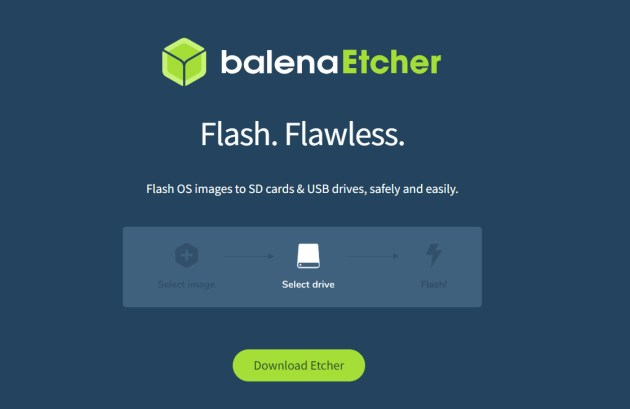
- Download a utility program like Balena Etcher that will “flash” the Linux iso file to the USB drive, which you will use to install Linux.
- Open Balena Etcher and (1) choose the Linux distro you downloaded and (2) choose the USB drive as the destination. Click on Flash to begin loading the .iso file to the flash drive.
Edit BIOS
There are a couple of changes I make in BIOS, at least on some Dell laptops:
- Restart the computer and tap the F2 key until the BIOS loads
- Navigate in BIOS to Security/Maintenance > Data Wipe, and enable “Wipe on Next Boot.” This will completely eliminate any information on the disk and remove old operating system partitions. I found this to be necessary when trying to install Ubuntu on a disk that formerly had a Fedora operating system that refused to be completely removed using a partition manager.
Installing Linux
- Leave the flash drive inserted.
- Restart the computer into Setup. On a Dell computer, you can do this by continuously tapping the F2 key until you see that it has started Setup. Other brands use different keys.
- Use the up and down buttons on your keyboard to choose the Boot menu.
- Select Balena Etcher as the Boot disk, save, and finish. The computer will now start up with the Linux distro (Linux Mint or Kubuntu).
You are now temporarily using Linux through the USB drive. The first thing to do is connect to my wireless network to access the internet. If you like what you see, click on Install. The program will go through a short list of options, like time zone and language. If you have already connected to the internet, it will select these automatically. It’s important to choose how you want Linux installed. You have two options:
- Erase your hard drive and install Linux.
- Allow the program to install Linux alongside your existing Windows operating system if you have enough room on your hard drive. This is called “dual-booting.” Each time you start your computer, the GRUB menu should appear, giving you the option of running Windows or Linux. (Windows should always be installed before Linux for the GRUB menu to work correctly. If it doesn’t, you can still choose which system to use each time with the appropriate function key for your computer.)
Internet connection: If your wireless connection isn’t working on an older computer, the driver may need to be updated. Connect the computer to an Ethernet cable to install updates. Go to Driver Manager in the menu and choose to allow the wireless network adaptor to be used. Then it should show the option to update the driver. It’s good to restart the computer after major updates.
Congratulations, You’ve Installed Linux
Finding Your Way Around
Menu: On Linux Mint Cinnamon, access the menu by clicking on the circle with an LM in the bottom left corner. In Kubuntu, it’s a white circle with spokes.
Task Manager/Panel: This is the menu bar at the bottom of the screen. You can add or remove apps and applets/widgets to this bar. In Kubuntu, the bar is called the Task Manager, and in Linux Mint it is called the Panel.
Applets & Widgets: Linux Mint has a cool feature to install mini-apps, like a calendar, weather, or a radio tuner, to the Panel. Ubuntu has a similar feature called widgets, which you open by right-clicking on the Task Manager bar.
Snaps and Flatpak
It is possible to install apps from the command line or from the web, but the Linux Mint and Ubuntu package managers are the easiest and most secure way to do it.
Flatpak is the default app installation package manager in Linux Mint. To use it, click on the LM circle in the lower left corner of your screen, and you will see the Linux Mint Cinnamon menu. The right column shows all the apps that are installed. In the left column near the top is a green circle in a square. Click on this, and it will open the Flatpak utility. You can scroll through it to see what is available, or type what you’re looking for in its search box. Click on the app you want to install. It will ask for your password. This is a good thing; it prevents malicious programs from being installed on your computer.
Snaps are the app installation package manager for Kubuntu and most Ubuntu-based distros. To install apps in Kubuntu, click on the Discover link (a blue shopping bag). From there, the instructions are similar to Flatpak.
To enable Flatpaks in KDE’s Discover in Kubuntu 25.04, run this command in the Konsole: sudo apt install flatpak plasma-discover-backend-flatpak. To enable the largest Flatpak repository, run this command: flatpak remote-add –if-not-exists flathub https://flathub.org/repo/flathub.flatpakrepo. After installing Flatpak, log out and log back in (or restart) to make Flatpak apps appear in the startup menu.
Command Line
In the lower left of your screen is the Linux command line, also known as a shell, terminal, or konsole. Here, you can type command prompts when there is no graphical user interface (GUI) to accomplish your objective. Most command prompts begin with the word sudo to grant permission. For example, typing sudo apt update will automatically update apps. The command line will always ask for your password, which prevents malicious code from being installed on your computer.
Browsers
Mint and Kubuntu come with Firefox installed as the browser. Firefox is recommended for its security and privacy, but does not work well with touchscreen. The Software package manager (Discover in Kubuntu) has alternative browsers you can install.
Brave Browser
Install the Brave browser, which has the Chromium interface and looks identical to Google Chrome, but protects your privacy, unlike Chrome. By default, Brave has its own search engine, but you can go to Settings/Search Engine, and make your choice of several search engines, including Google and Duck Duck Go.
Passwords: If you are using a password manager in Google Chrome, go to chrome://password-manager/settings to download all of your passwords as a CSV file to a USB drive. Don’t save them on your hard drive. Then, when you are on Brave in Linux or Windows, go to brave://password-manager/settings and import the saved passwords as a CSV file. I also keep my passwords on a flash drive, which I use when the password manager doesn’t work. Firefox and Bing will both offer to save your login information for sites you visit.
Favorites: You can save your favorites from your previous browser as an html file and load them into Firefox, Brave, or your choice of browsers. If you have more than one computer or laptop, Firefox automatically displays your favorites when you sign in. On the other hand, with the Brave browser, there is no sign-in. Instead, go to settings/sync to share your passwords with other devices using Brave.
Zoom: The default text is too small in Brave. To permanently increase the text size, click the 3 lines in the upper right corner, go to Settings, then Content, and change Page Zoom to 110% or 125%. (To temporarily change the zoom settings for a page you are on, click the 3 lines in the upper right corner and change zoom to 125%.)
Casting: With the Chromium or Brave browsers, you can cast to your smart TV or a TV using the Chromecast dongle exactly as you would in the Chrome browser in Windows. Open the tab you want to cast, then go to Save & Share / Cast. To stop the cast, you may need to change the source in your TV remote control.
Distros and Desktop Environments.
Each new version of Windows replaces the previous version and offers only one graphical user interface (GUI), also called a desktop environment (DE). If you buy a computer with Windows, there are few options for changing the DE. On the other hand, Linux is open source, and there are many Linux distributions (“distros”) to choose from.
You don’t have to install a Linux distro to check it out. To view an active list of Linux distros by download popularity, go to DistroWatch.com. To virtually test drive any Linux distro without having to install anything, go to DistroSea.com. The best way to try out Linux is to run it from the installation media you created with Balena Etcher (see instructions above).
View Useful Notes from my Linux Installations
Open-source apps I use on my Linux laptop
- Brave: a safe version of the Chromium browser that protects your privacy
- ClamUI with Clam daemon: Free antivirus program
- Converseen: Convert, resize, rotate and flip an infinite number of images in a batch automatically
- CPU-X: Linux version of CPU-Z. Displays information on CPU, motherboard, memory, etc.
- Dolphin file manager: preinstalled in Kubuntu
- Discover Software Center: preinstalled in Kubuntu. Comes with SNAP repository. I suggest adding the Flatpak repository as well.
- Entangle: Remote control for USB-tethered digital cameras. (Saves to default Pictures folder)
- Firefox: Open-source browser preinstalled in many Linux distros. Protect your data.
- GIMP, the GNU Image Manipulation Program. A sophisticated but unintuitive replacement for Photoshop.
- GParted: GNOME Partition Editor
- Gwenview: Image viewer for displaying a collection of images in a folder.
- Hard Info System Profiler: gathers information about the hardware and operating system, performs benchmarks, and generates reports.
- Info Center: Information about your computer, installed with Discover
- Kate: a multi-document, multi-view text editor for programmers by KDE. (I rarely use this)
- KDE Connect: Transfer files between phone and computer
- KDE Marble: Open Street Map zoomable globe
- KFind: search for anything in your files and folders
- Konsole: Terminal program preinstalled in Kubuntu
- Krita: Digital painting, photo editing. The best uncomplicated replacement for Photoshop
- LibreOffice: The most advanced replacement for Microsoft Office.
- NAPS2: An excellent scanning program that saves as an OCR-searchable PDF
- OnlyOffice: A minimalist replacement for Microsoft Office. Unlike the presentation app in LibreOffice, the PowerPoint app displays correct image ratios.
- Okular: a universal document viewer, great for PDFs
- Spectacle: Captures desktop screenshots or a rectangular region of the screen.
- System Monitor: An application for monitoring system resources
- Timeshift: system restore utility for Ubuntu. A must-have, available as a .deb package
- Upscale: An AI image upscaler that improves resolution on old photos
Final Thoughts
Linux is a great solution for an older Windows computer or laptop that can’t be updated to Windows 11. If you just need a web browser, an office program, and something for light image editing, either of these Linux distros is right for you. Linux users proclaim it to be a better operating system than Windows. Install a stable Ubuntu-based distro like Linux Mint or Kubuntu, and it will work.
When you run Linux, you’re no longer a victim of the whims of Microsoft. Your operating system, apps, and files are yours, not on the cloud, and you’re not being spied on, depending on which browser and search engine you use. Mint and Kubuntu are not difficult for people who are already comfortable with computers, and it’s exciting to learn something new. Linux users are a friendly family with informative forums to help people with their questions. After experimenting with various distros over the past year, I highly recommend Kubuntu.
 Historic Ipswich
thanks for information